

Set your PIN
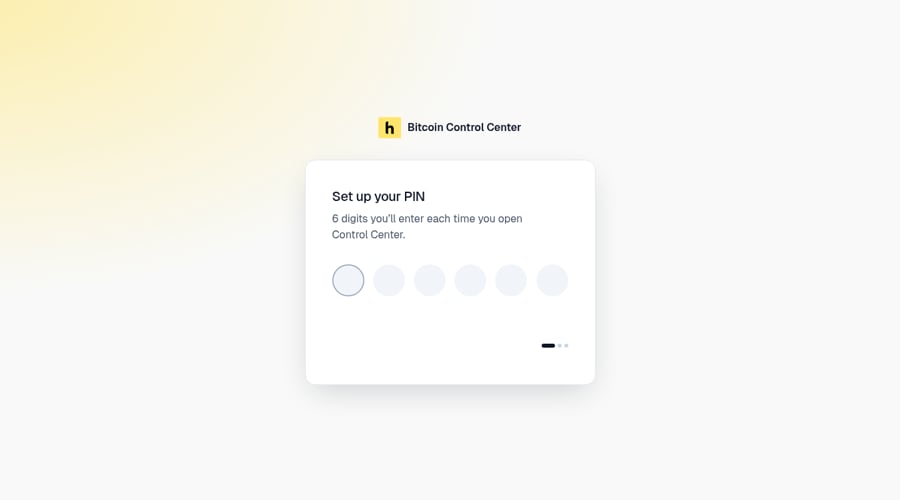
Enter 6 digits, then enter them again.
- On Set up your PIN, enter 6 digits.
- On Confirm your PIN, enter them again. Select Back to start over. Don’t match? You see Those PINs didn’t match. Choose your PIN again. Start from step 1.
- On Your PIN is set, select Show PIN or Copy PIN to save it in your password manager.
- Select Continue.
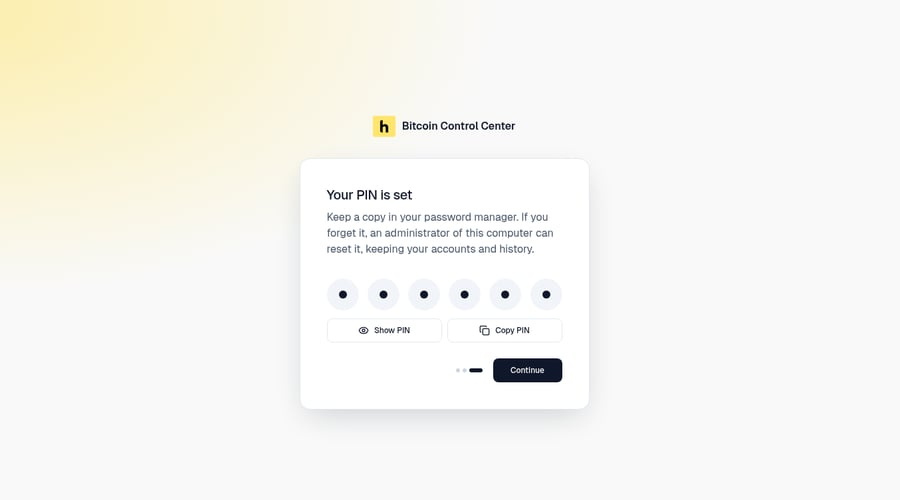
Your PIN is set. Show or copy it before you continue.
Unlock
Enter your PIN each time you open Control Center.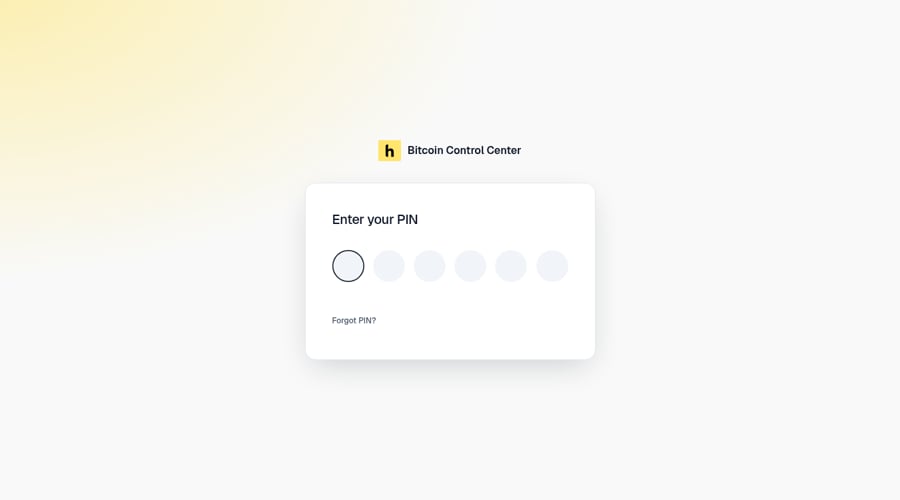
Enter your PIN.
Quitting or restarting doesn’t clear the wait. Forgot PIN? still works and clears it.
When the app locks
- You select the padlock icon at the top right.
- You close the desktop window.
- You reopen a closed tab, or duplicate a tab.
- The app or server restarts. Everyone is signed out.
Change your PIN
Open Settings → Security → Change PIN.- Enter your current PIN.
- Choose a new PIN.
- Confirm your new PIN.
Forgot your PIN?
Select Forgot PIN? on the sign-in screen. Your accounts and history are kept on every platform.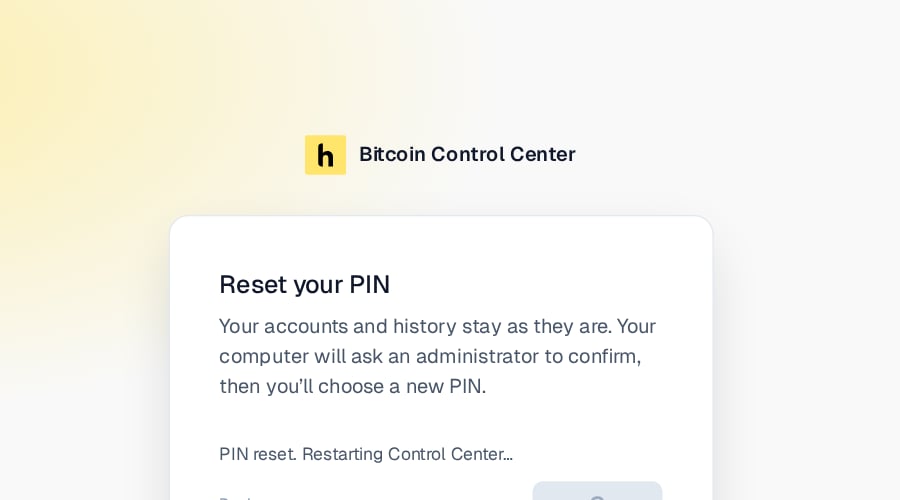
Reset your PIN. Your accounts stay put.
- Mac and Windows
- StartOS
- Select Reset PIN.
- Confirm you’re an administrator.
- Mac: the prompt says Bitcoin Control Center wants to reset its PIN. Enter an administrator’s name and password.
- Windows: a User Account Control prompt for Windows Command Processor appears. This is expected. Select Yes, or enter an administrator’s password.
- You see PIN reset. Restarting Control Center…
- On Choose a new PIN, set a new PIN.