If your wallet isn’t one of the guided options, you can still prove control. Sign the message from Control Center in your own wallet app, then paste the signature back.
Signing a message is not a transaction. It can’t move or spend your Bitcoin, and it doesn’t reveal your private key.
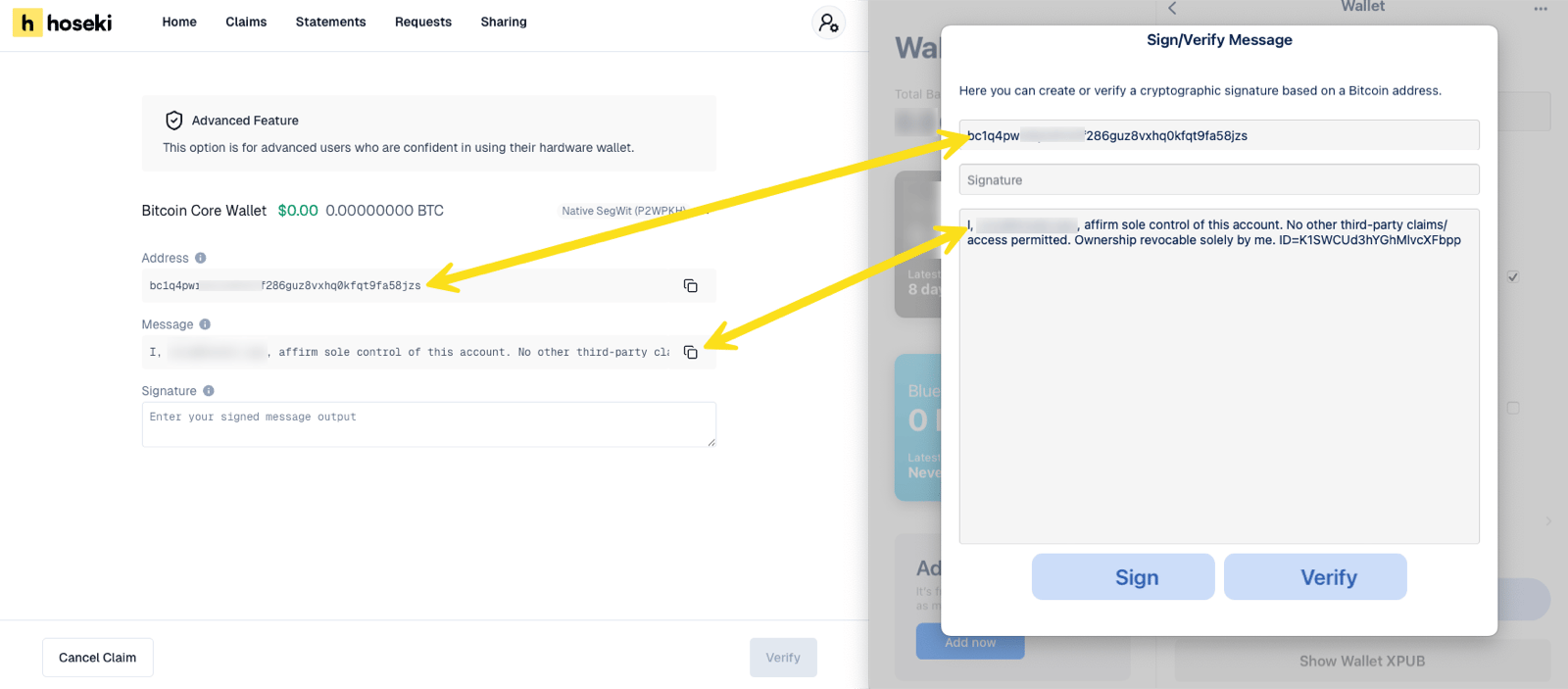
You need two things from Control Center: the address and the message. Sign with that exact address, using the exact message. Don’t add spaces or line breaks.
Sparrow works with most hardware wallets, including Keystone, BitBox, and Passport. Connect your device to Sparrow first.
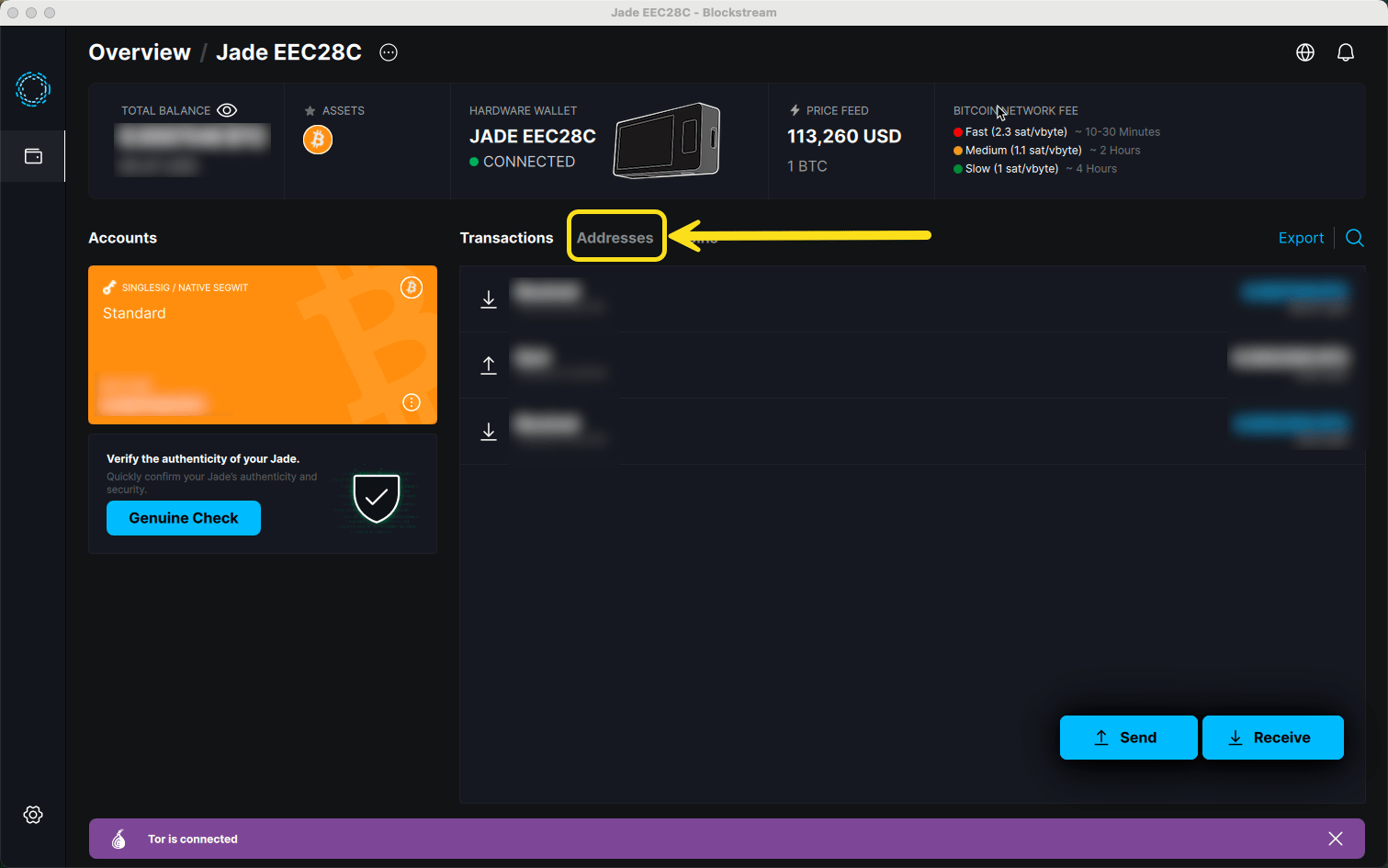
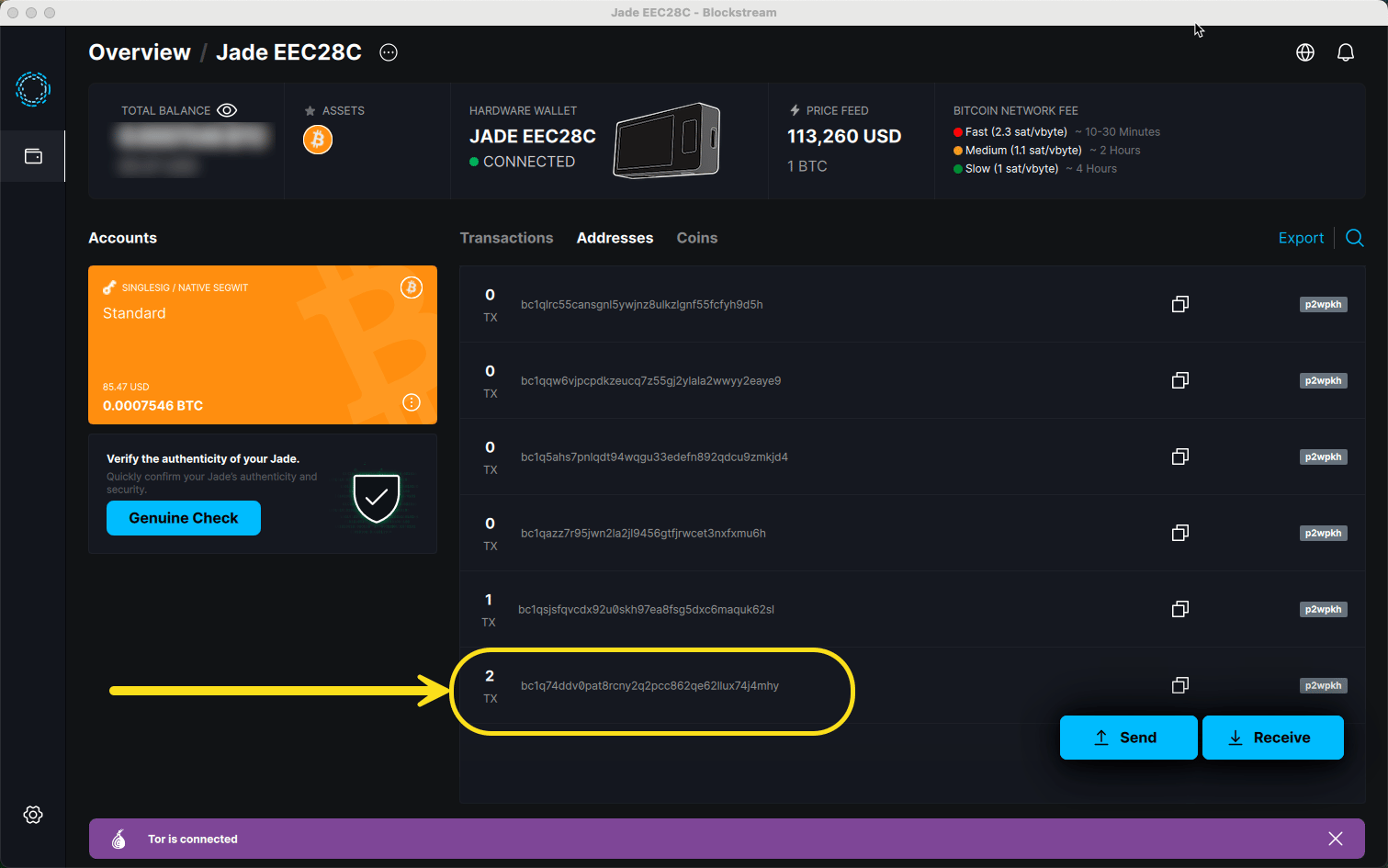
  1. Open the Addresses tab. Find the address Control Center shows. It is usually the first receive address.
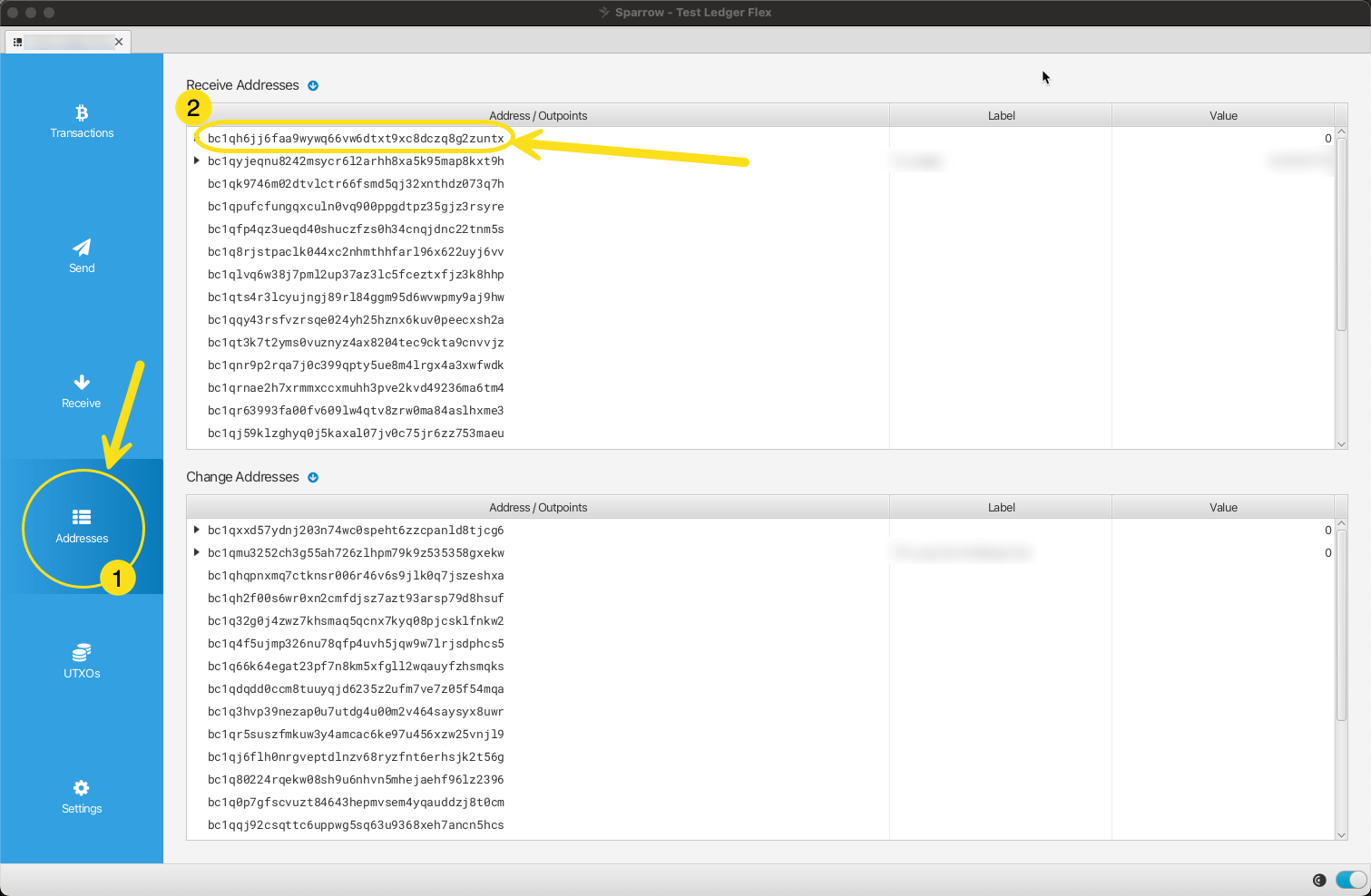
    Sparrow Addresses tab with the first receive address highlighted
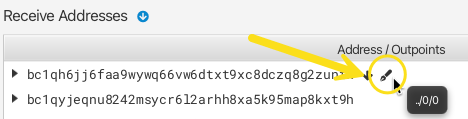
  2. Select the pen icon on that row.
    Pen icon on the address row in Sparrow
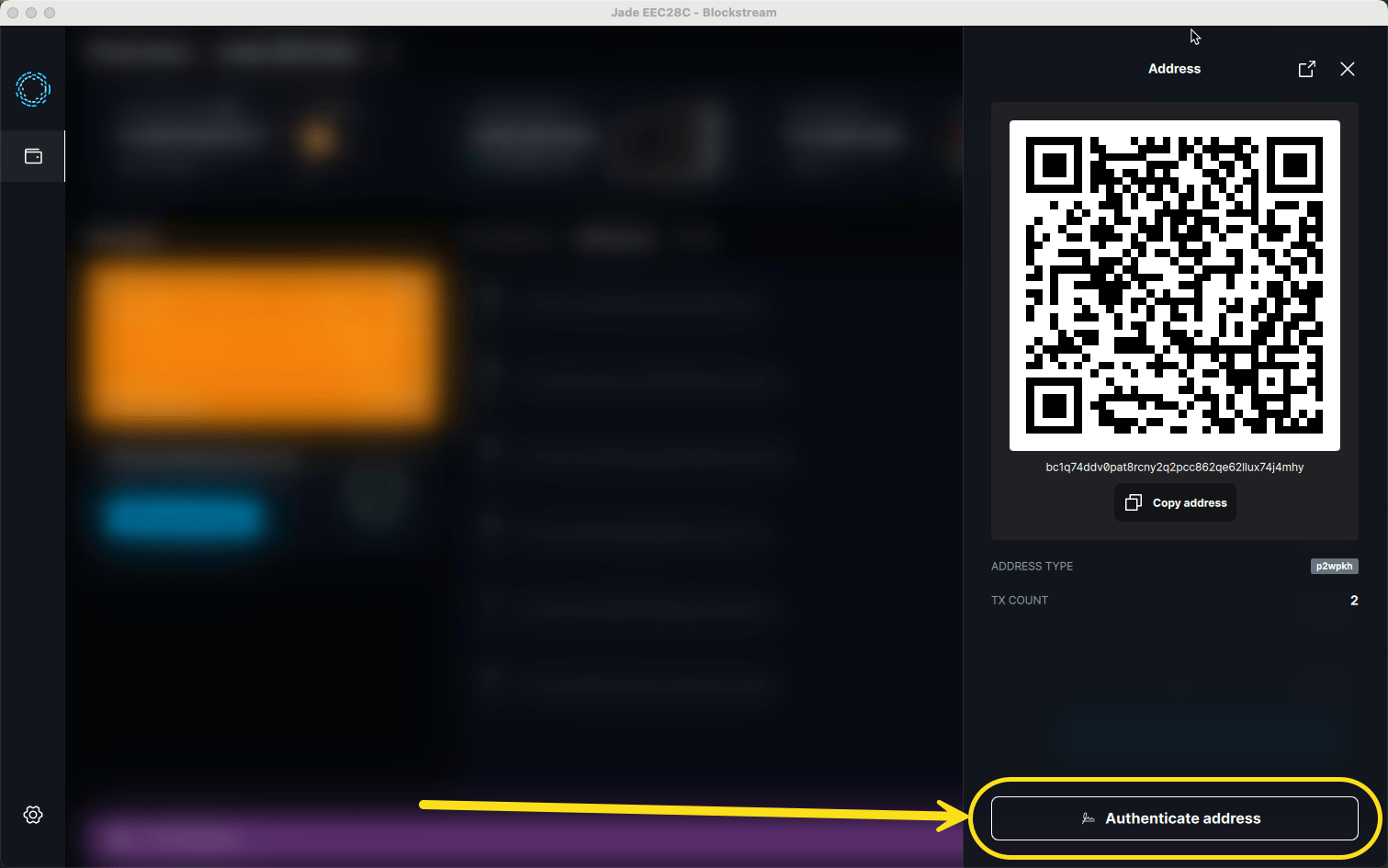
  3. Paste the message from Control Center into Message. Check the Address matches.
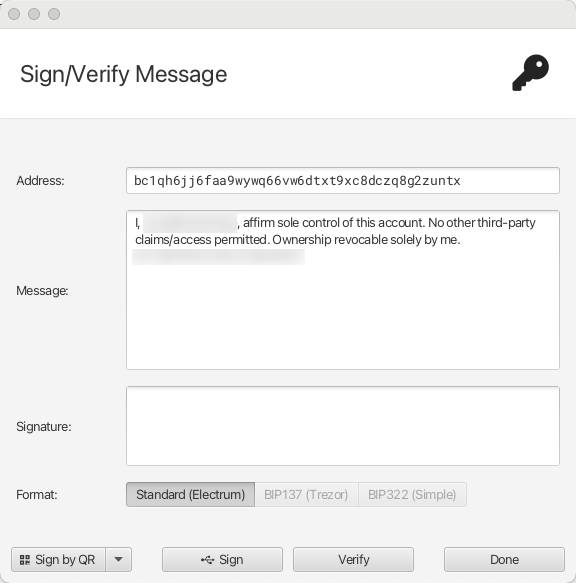
    Sparrow Sign/Verify Message dialog with address and message filled in
  4. Select Sign. Approve on your device by QR, USB, or SD card.
  5. Copy the Signature. Optionally select Verify to check it first.
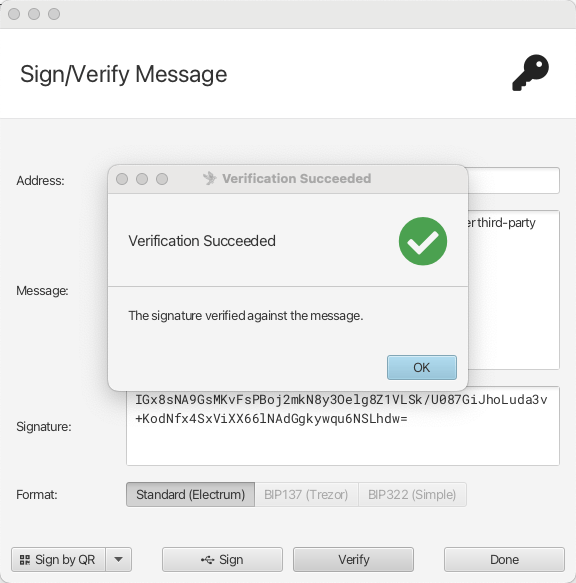
    Sparrow showing a verified signature
Paste the signature into Control Center. Select Verify. Signature not accepted? Check that you signed the unchanged message, with the exact address shown, and pasted the signature unchanged. See Verify ownership for what the message says.