

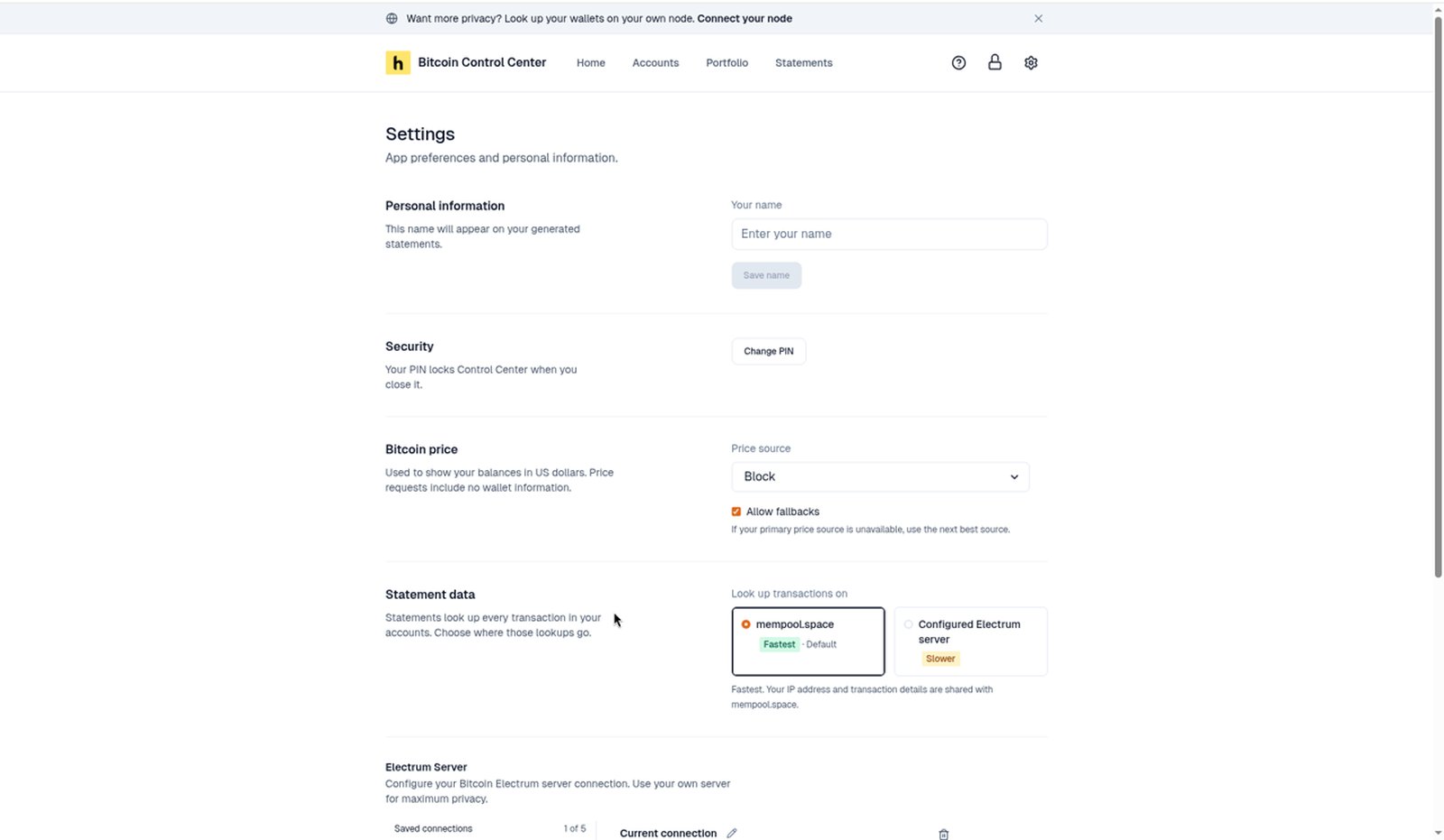
Settings on desktop.
Personal information
Your name fills in the name on new statements. Select Save name.Security
Change PIN and, on servers, Sign out everywhere. See PIN and lock.Bitcoin price
Sets where the Bitcoin price comes from. Price requests include no wallet information.
Allow fallbacks (on by default) uses the next source in the list if yours is down.
Statement data (desktop)
Choose where statement transaction lookups go.
Choosing Connect via Tor or your own node in the introduction starts you on Configured Electrum server.
Existing statements keep the source they were made with.
Electrum Server (desktop)
Where wallet balances come from. Use your own server for the most privacy.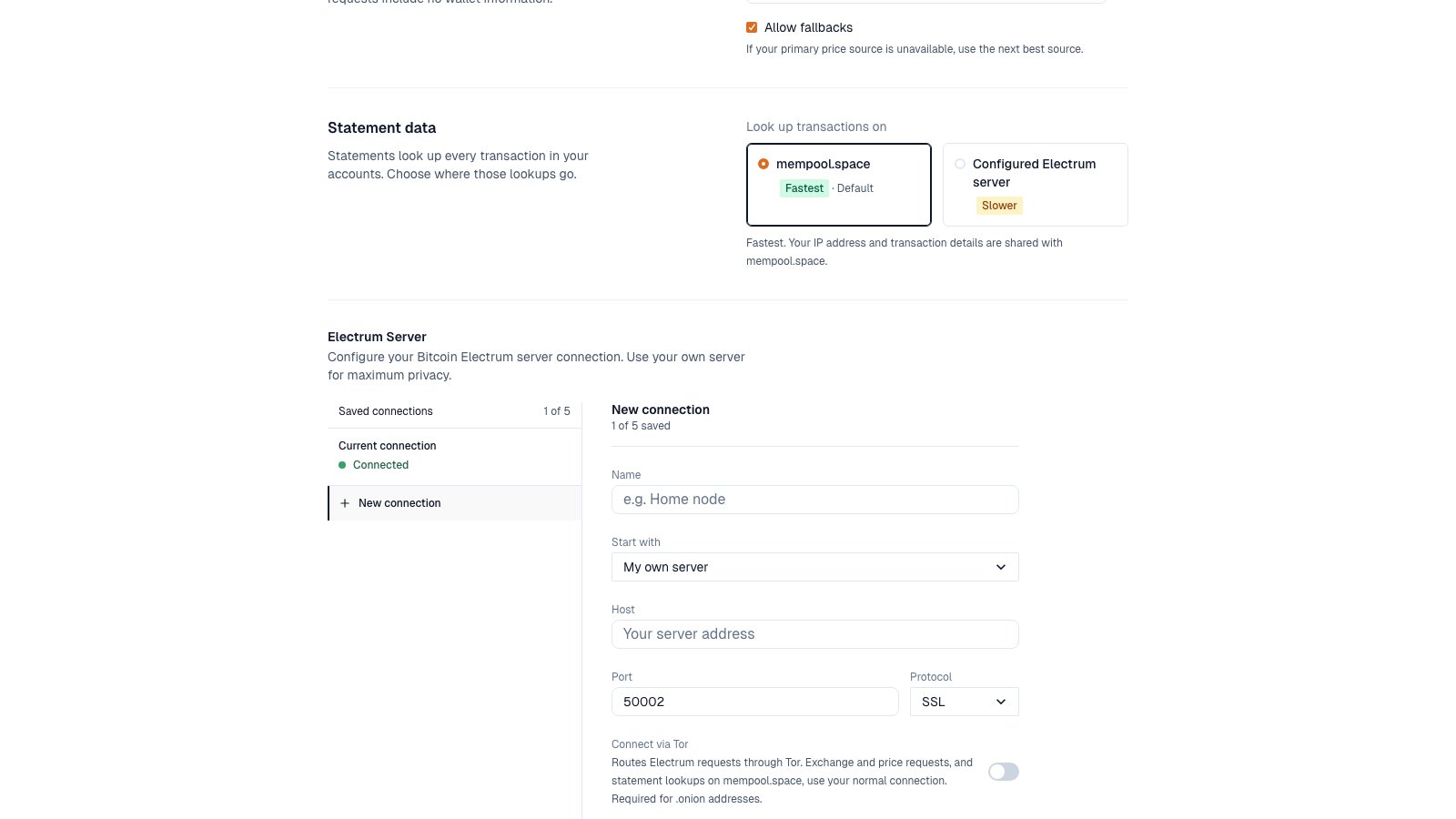
Saved connections on the left. Details on the right.
- Saved connections: up to 5. One is active. It shows Connected, Connecting…, Checking…, or Disconnected. Others show Tor or Direct.
- New connection: enter Name, Host, Port, and Protocol. Start with can fill in Blockstream (Public).
- Test Connection checks it without switching. Save keeps it for later. Save & Connect saves and switches to it.
- To edit a saved connection, change its details. Then select Save & Reconnect (in use) or Save & Connect (not in use).
- Connect via Tor sends Electrum requests through Tor. It’s required for
.onionaddresses. Exchange and price requests, and statement lookups on mempool.space, do not use Tor. - Delete a connection with the trash icon. You can’t delete the active one. Connect to another first.
- Limit reached. Delete one to add another. You have 5 saved. Delete one first.
- Connection saved. Select Connect when you want to use it. You saved without switching. Select Connect to use it.
- This connection changed in another window. Reload the page, then save again.
Why Blockstream by default?
Control Center needs an Electrum server to read your balances. Out of the box, it uses Blockstream (Public). The introduction asks whether to keep it or connect your own node. Wallet makers like Trezor and Ledger run their own servers, but only for their own apps. Other apps can’t use them. What Blockstream can see: the addresses you check and your IP address. It can’t see your keys or move your bitcoin. More privacy:- Turn on Connect via Tor. It works with Blockstream (Public). Syncing is slower, but the server can’t see your IP. Exchange and price requests still use your normal connection.
- Choose My own server to keep everything on your own node.
Tor messages
What’s not in Settings
- Currency: Home and Portfolio show USD. Pick CAD, GBP, or EUR per statement.
- Dark mode: not available yet.
- Backup and restore: done outside the app. See Backup and restore.
- App version: not shown in the app yet. See Find your app version.