

Connection
Cannot connect to Electrum
Cannot connect to Electrum
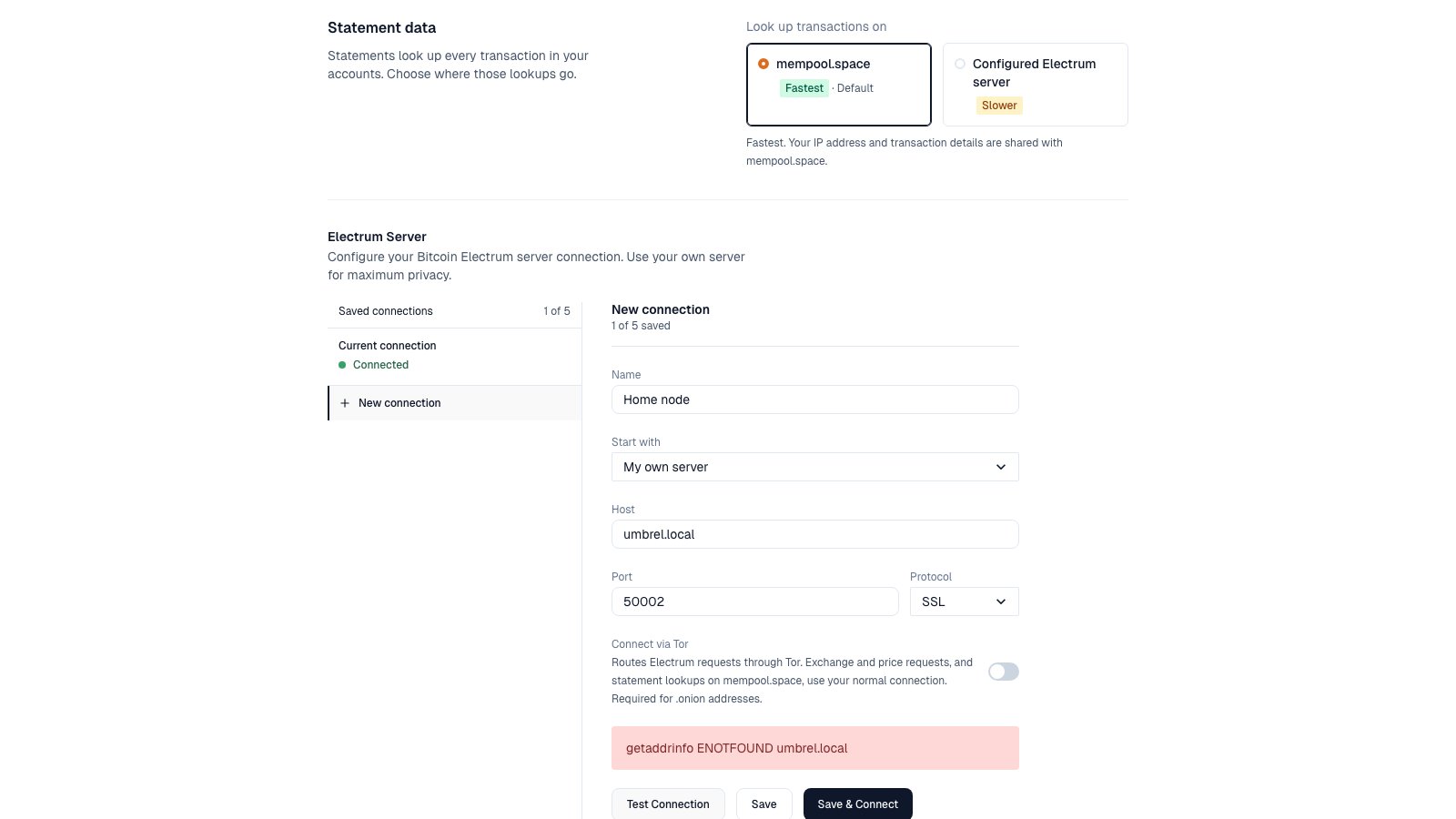
Electrum connection error.
- Check host, port, and protocol. SSL usually uses
50002. TCP usually uses50001. - Confirm the server is on mainnet and fully synced.
.onionaddress? Turn on Connect via Tor. Use TCP. Tor already encrypts it. Tor can take up to two minutes to start.- SSL to a public hostname with a StartOS Root CA? Install the CA on your computer. Fully quit and reopen the app. Local addresses (
.local,192.168.x.x) don’t need it. - Use the port and protocol your node’s Electrum app shows. Many home nodes use TCP on
50001.
- Select Test Connection in Settings to check.
Portfolio says "Wallet history couldn't be loaded" or "Couldn't load this date range"
Portfolio says "Wallet history couldn't be loaded" or "Couldn't load this date range"
Portfolio says "Last synced…" or "Can't reach Electrum"
Portfolio says "Last synced…" or "Can't reach Electrum"
Tor won't start
Tor won't start
- Check your internet connection. Some networks block Tor.
- “Tor could not connect within two minutes”: try again on another network.
- “Bundled Tor is missing”: reinstall the desktop app.
Introduction: "Couldn't connect through Tor" or "Couldn't connect to …"
Introduction: "Couldn't connect through Tor" or "Couldn't connect to …"
- Tor: select Continue to try again, or turn off Connect via Tor.
- Your node: check the Address, Port, and Protocol, and that your node is on. The reason shows under the message.
- See Choose an Electrum server.
StartOS: Control Center won't start
StartOS: Control Center won't start
StartOS: "Insecure connection not allowed"
StartOS: "Insecure connection not allowed"
https:// address or the .onion address. The PIN doesn’t work over plain http://.Balances
Balance is zero or wrong
Balance is zero or wrong
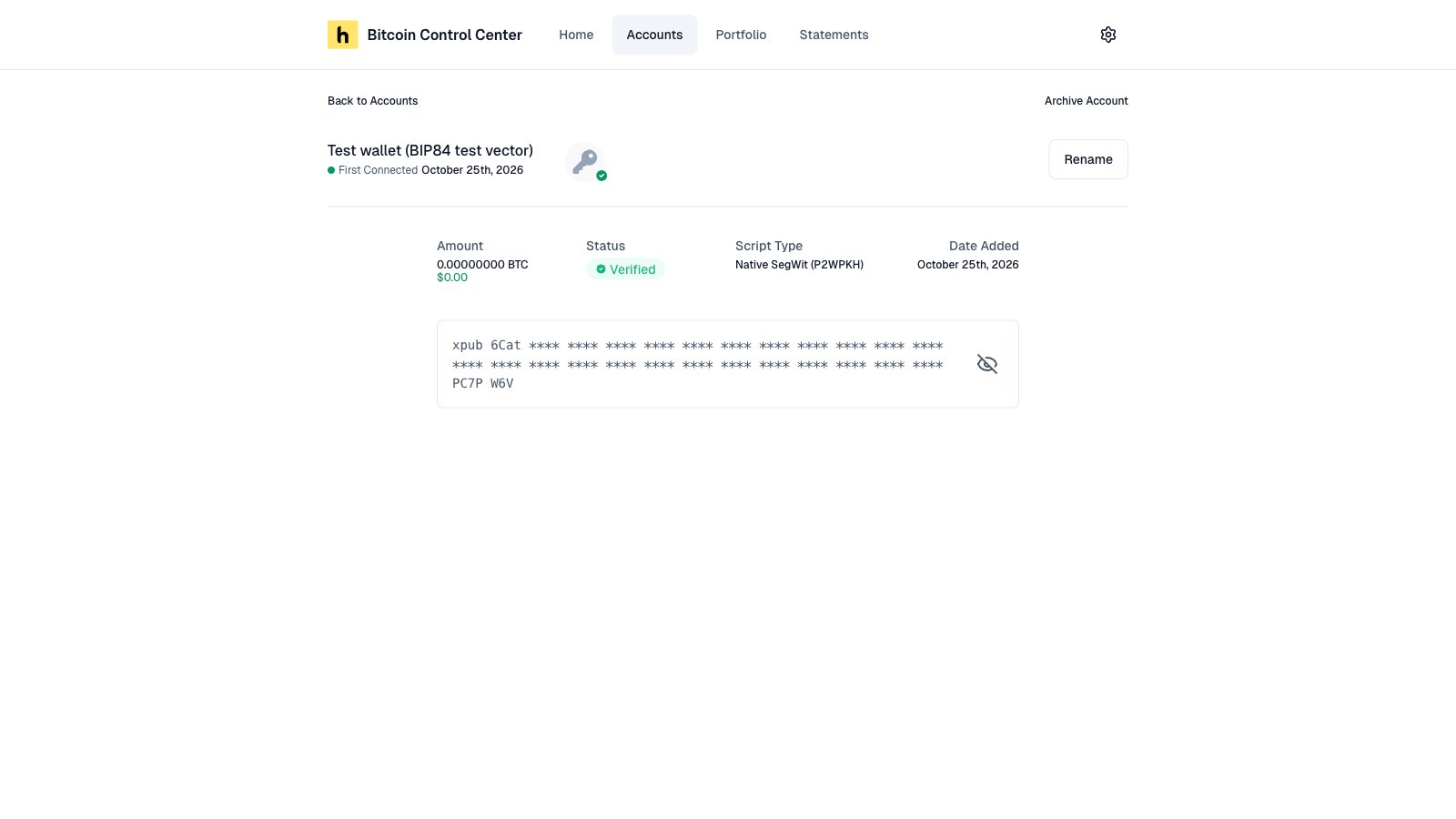
Still syncing.
- Wait for the first sync to finish.
- Confirm your Electrum server is fully synced.
- Wrong address type. Added by xpub? Pick the script type that matches your addresses. See xpub or descriptor.
- Wrong account. Check you picked the right account number or passphrase wallet.
- 20 or more unused addresses in a row. Control Center stops looking after 20 unused addresses. Funds past that gap don’t show.
- Unconfirmed funds don’t count yet. Wait for one confirmation.
"No wallets found" when adding a hardware wallet
"No wallets found" when adding a hardware wallet
My xpub or descriptor won't paste
My xpub or descriptor won't paste
xprv or zprv. Control Center refuses them. Paste the public key or watch-only descriptor instead. See Pasted a private key?My total shows "—" or dropped
My total shows "—" or dropped
- ”—” means a balance couldn’t be confirmed. Select Try Again.
- A drop usually means an exchange needs Reconnect, or you archived a wallet. See Home and Portfolio.
An exchange balance is counted twice
An exchange balance is counted twice
Hardware wallets
Hardware wallet not detected
Hardware wallet not detected
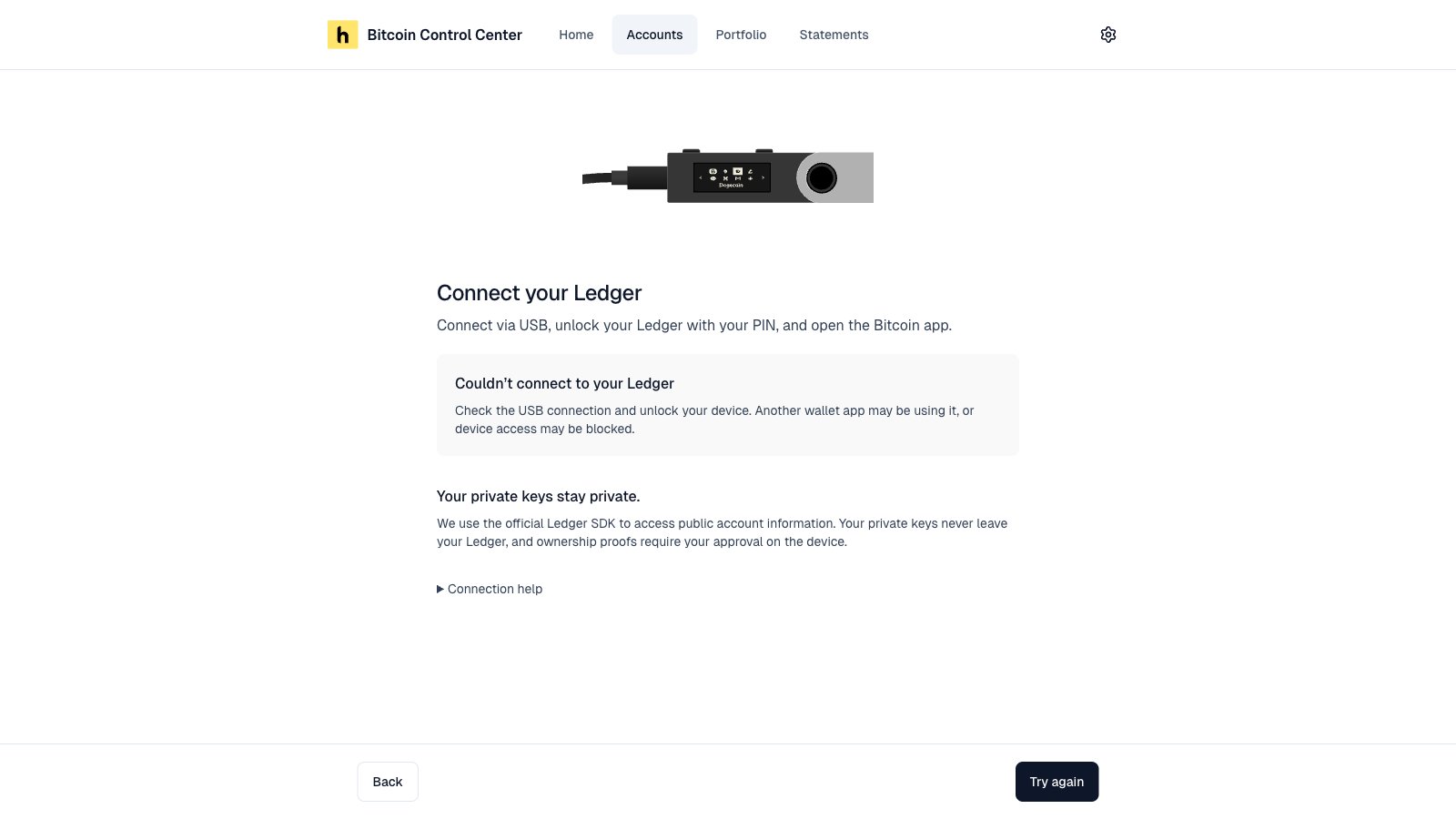
Allow the browser prompt.
- Unlock it. Open the Bitcoin app.
- Close Ledger Live, Trezor Suite, and other wallet apps.
- Use a USB cable that carries data, not just power.
- On StartOS, use Chrome, Brave, or Edge. Firefox and Safari can’t connect to a Ledger.
Trezor Suite doesn't open
Trezor Suite doesn't open
Camera doesn't work for COLDCARD Q or Keystone
Camera doesn't work for COLDCARD Q or Keystone
COLDCARD over USB
COLDCARD over USB
Stuck on "Waiting for device confirmation"
Stuck on "Waiting for device confirmation"
"Invalid signature"
"Invalid signature"
Multisig: "Not a match"
Multisig: "Not a match"
Exchanges
Exchange will not connect
Exchange will not connect
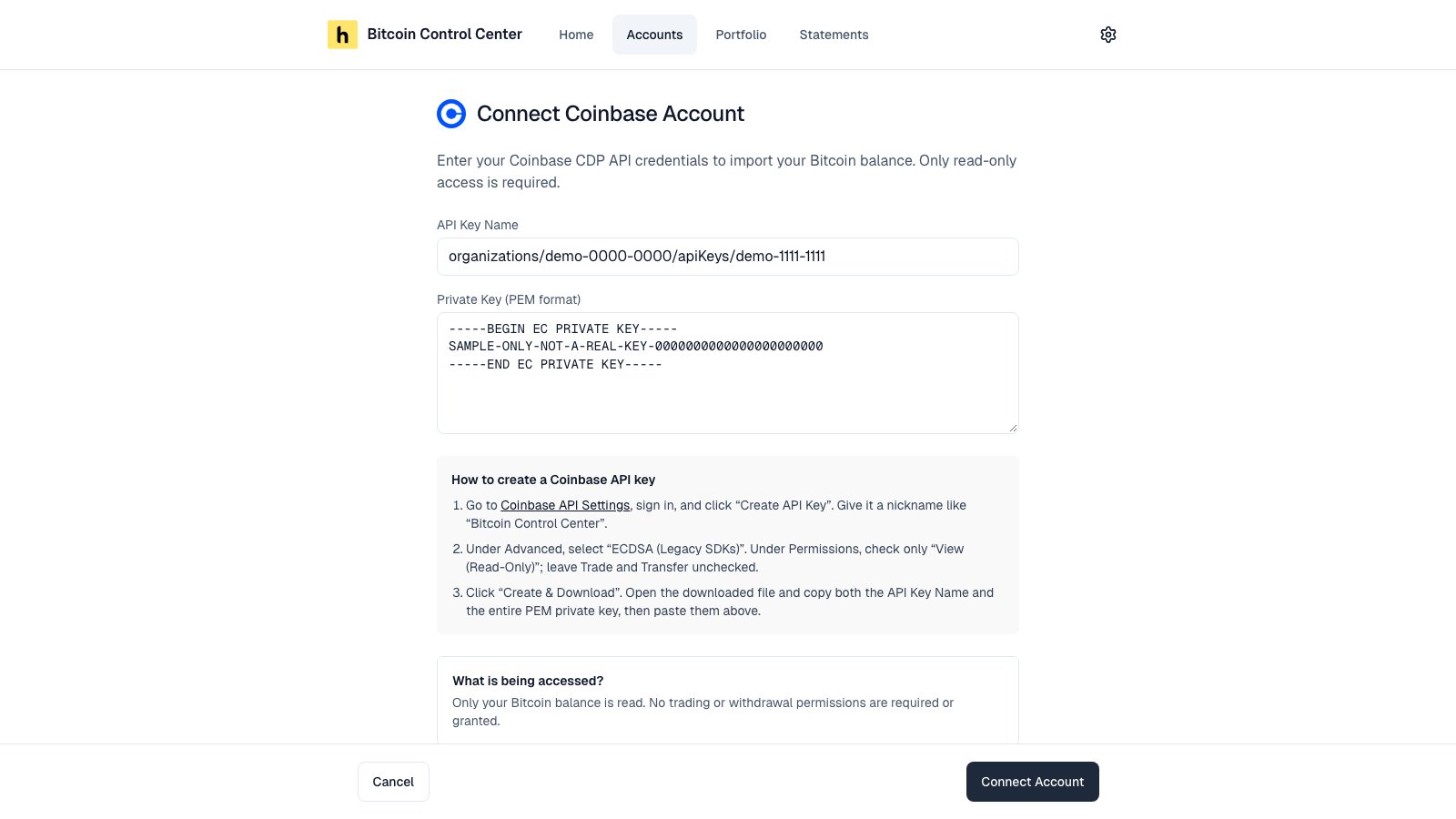
Exchange connection error.
- Re-copy the key. Check for extra spaces.
- Confirm the key has the right read permission. See Exchanges.
- Coinbase: use an ECDSA key, and paste the whole private key.
- Strike: turn on Read account balances. It’s off by default.
- Create a new key and try again.
Exchange shows "Reconnect"
Exchange shows "Reconnect"
"API rate limit exceeded"
"API rate limit exceeded"
Statements
A wallet is missing from the statement list
A wallet is missing from the statement list
I can't pick recent dates
I can't pick recent dates
Statement will not generate
Statement will not generate
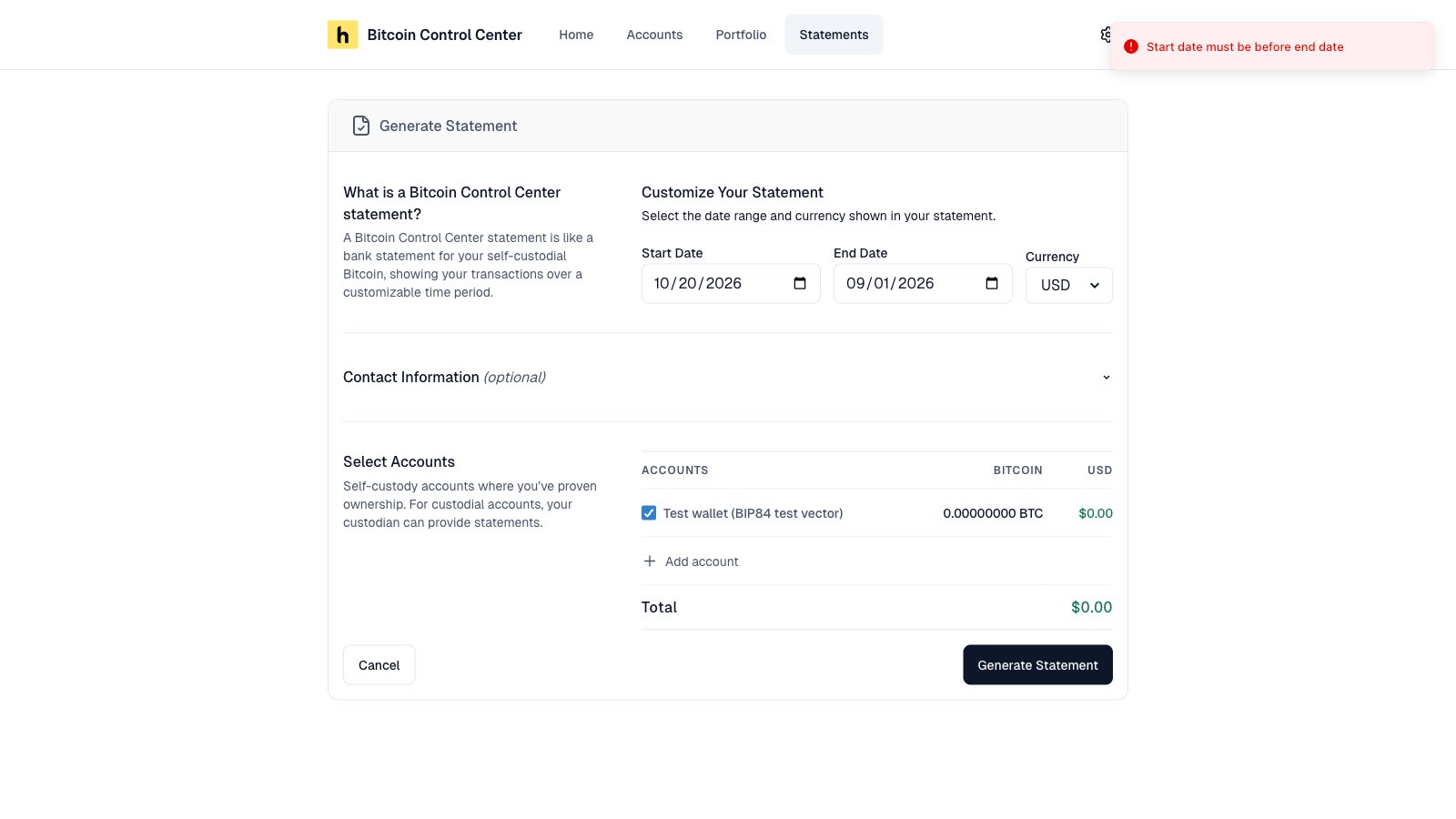
Statement error.
- Check your Electrum connection.
- On StartOS, make sure Mempool is running.
- “Generation was interrupted” means the app restarted. Generate it again.
- See If a statement fails.
The download is monthly, not the full period
The download is monthly, not the full period
App and PIN
Forgot my PIN
Forgot my PIN
"Too many wrong PINs"
"Too many wrong PINs"
"Couldn't reach Control Center"
"Couldn't reach Control Center"
"Control Center could not start"
"Control Center could not start"
"Something went wrong"
"Something went wrong"
I was signed out
I was signed out
- The app or server restarted.
- Someone changed the PIN in another tab or browser.
- On StartOS, someone ran Set PIN or selected Sign out everywhere.
I closed the window, but the app is still running
I closed the window, but the app is still running
Mac says the app cannot be opened
Mac says the app cannot be opened
Windows SmartScreen warning
Windows SmartScreen warning